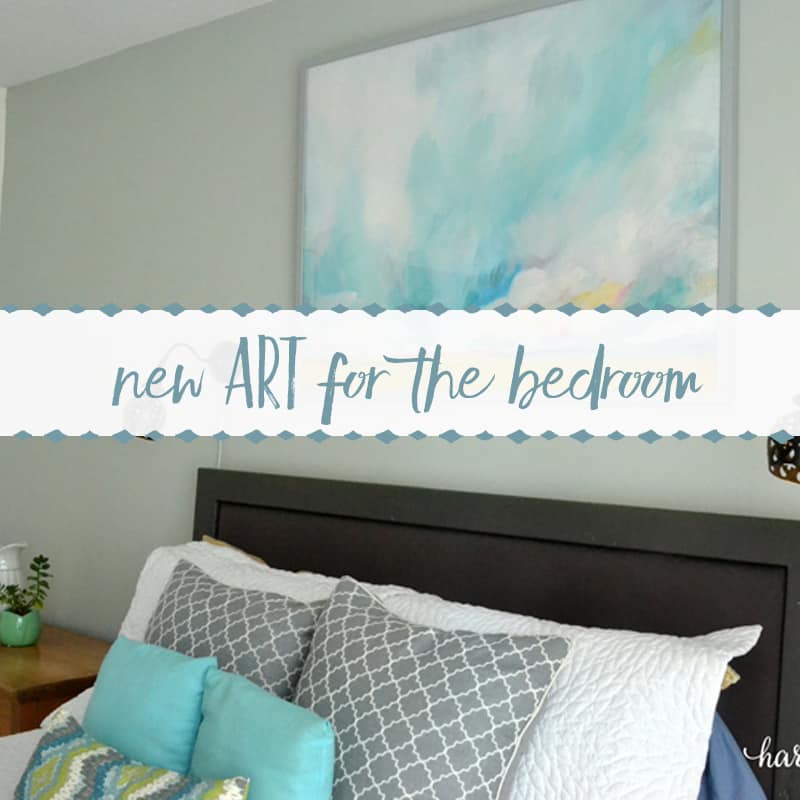
In this article: This easy, step-by-step guide shows you how to choose art from Minted using Photoshop.
Do you shop online?
I’m just getting started with that. I find it’s a 50/50 mix of thrilling and completely nerve-racking!
I love having so many options to browse, but I often wonder how a piece of home decor will look once it arrives. I keep asking myself things like,
- “Will it look good in my space?
- Will the colors look the same in real life as they do on my computer screen?
- How will the dimensions work in my actual room?
I went through all of those questions when I began searching for an art print from Minted. I had seen some pieces in other bloggers’ homes, and I was excited about the idea of adding some to mine.
What I found was hundreds and hundreds of gorgeous prints. Some were abstract paintings. Others were black-and-white photographs. Some were playful, some were moody, and some were cheerful.
And I was stuck. How on earth was I going to choose? About 20 of them really caught my eye!
So, for the very first time, I turned to Photoshop to see whether my computer could help me decide.
It did.
Let me show you how.
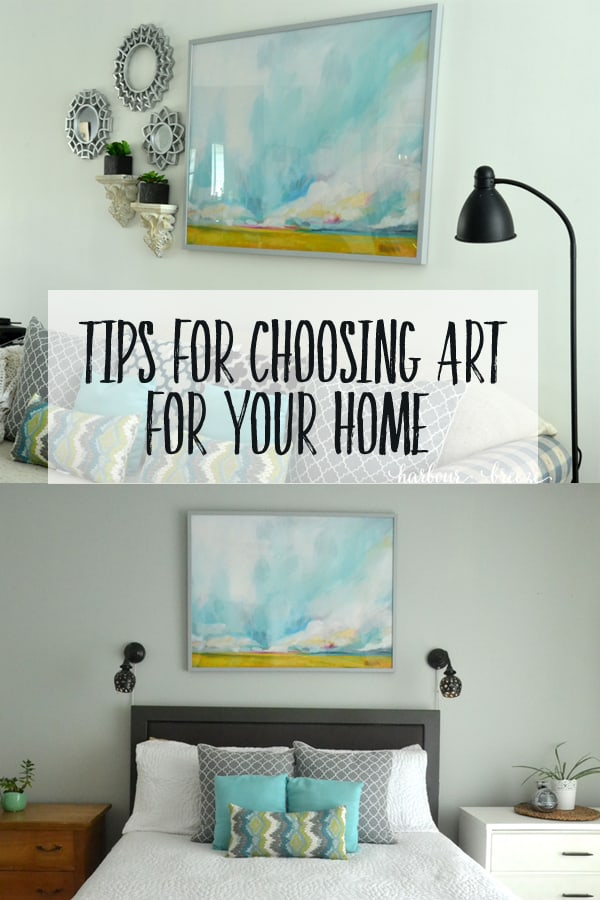
Choosing Art with Minted in Photoshop
Disclosure: This post was sponsored by Minted. It also contains affiliate links. As always, all opinions and reviews are honest and my own.
Open a photo of the space where you want to hang your art in Photoshop.
(Go to File–>Open–>Choose the photo you want)
Visit the Minted site and click “Art”–>Shop Fine Art
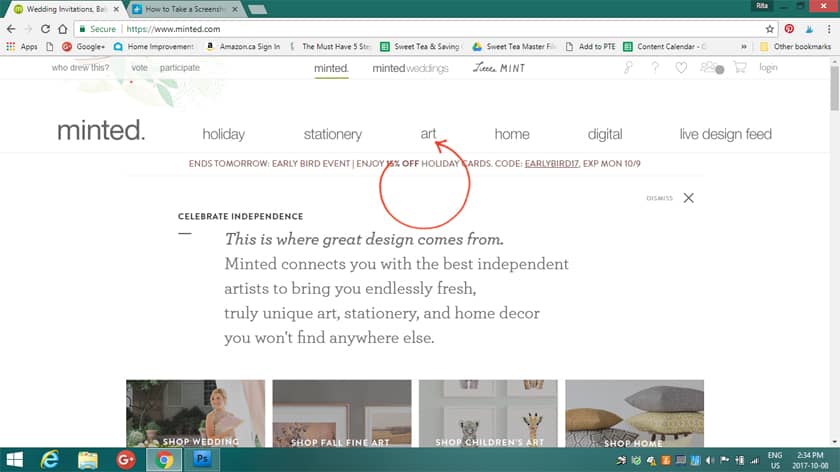
A page full of beautiful prints will appear. Fair warning: you may get so caught up in all the prettiness that you scroll for an hour. (I may be speaking from experience.;))
Narrow your search by entering a few specific guidelines for the art you want.
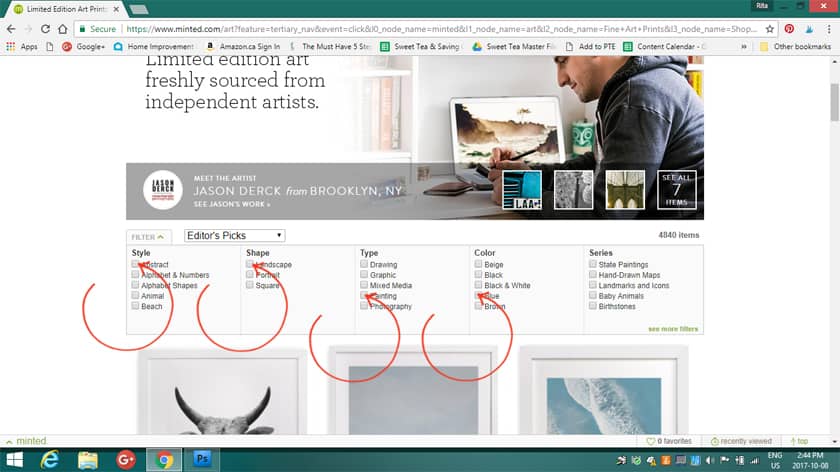
When you spot a possibility, hover over it and click to see more information.
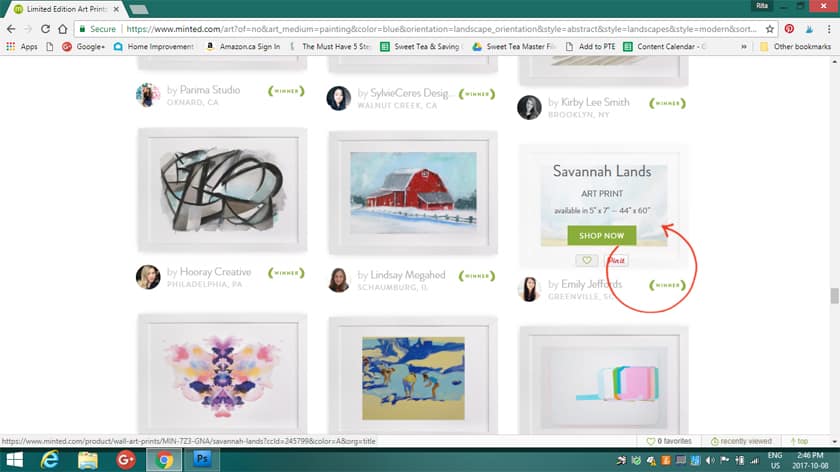
Right-click the image, then –>Save image as. Save it to a folder you can find later as a JPEG. Click–>Save
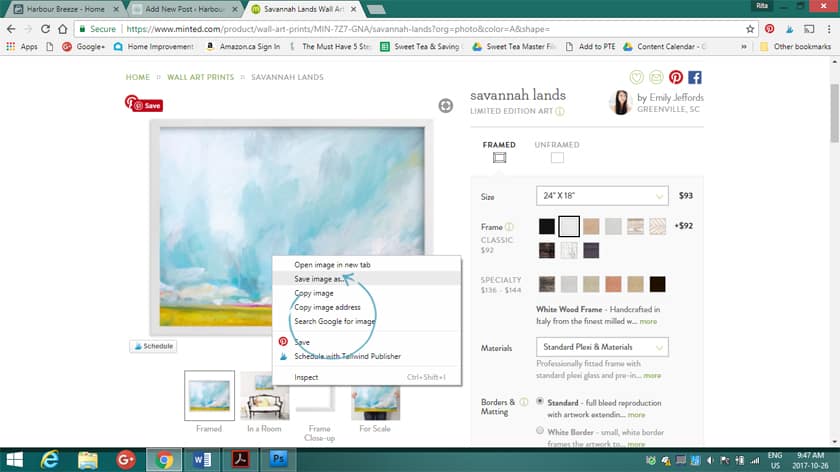
Repeat this process with as many pieces as you’d like to “try out” in your room.
Return to Photoshop. Click the title bar of your room photo and drag it down so the image floats in the window.
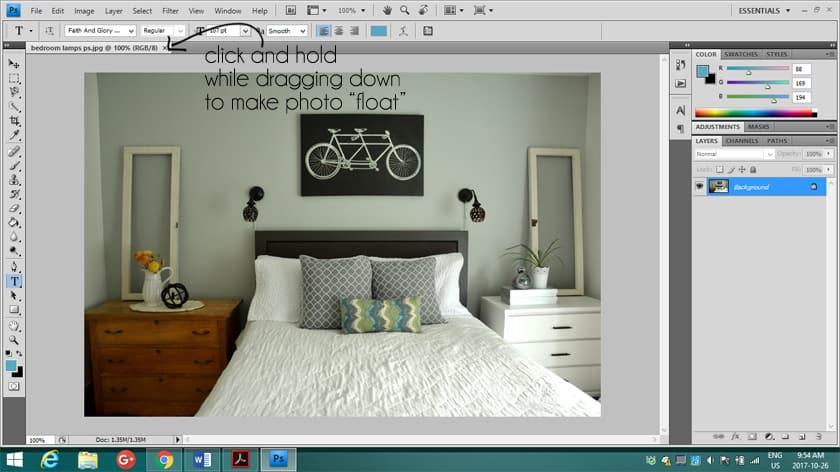
Once it’s floating, it will look like this:
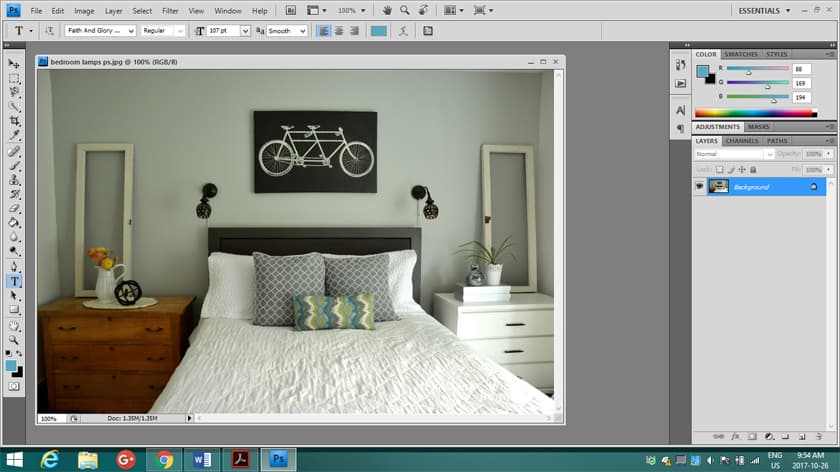
Open a Minted print you saved by clicking File–>Open and selecting the picture. Float it in the window the same way you floated the first photo.
Click the second icon on the left (the square with dotted lines), which is the Rectangular Marquee Tool.
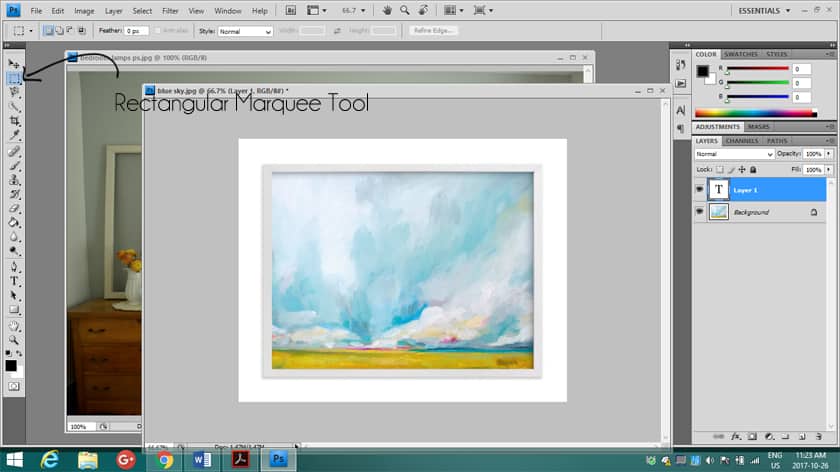
Click at the top left corner of the print and drag until the whole picture is outlined with dotted lines. When you let go, the dotted lines should look like they’re moving, like marching ants.
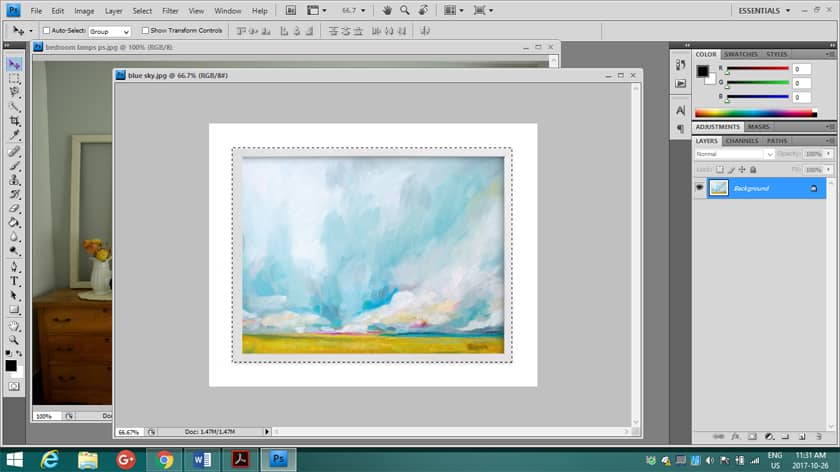
Click the top left button with a cross made of four arrows. That’s the Move Tool. After selecting it, click on the art and drag it over to your room photo.
It will look very large and fill the whole room!:)
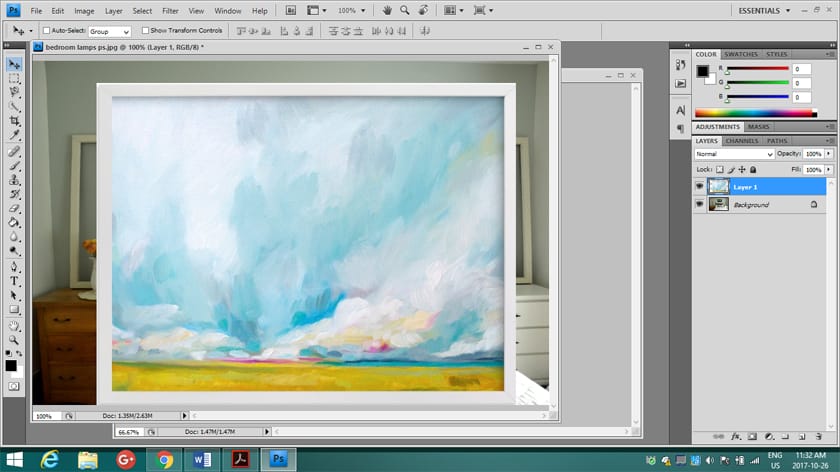
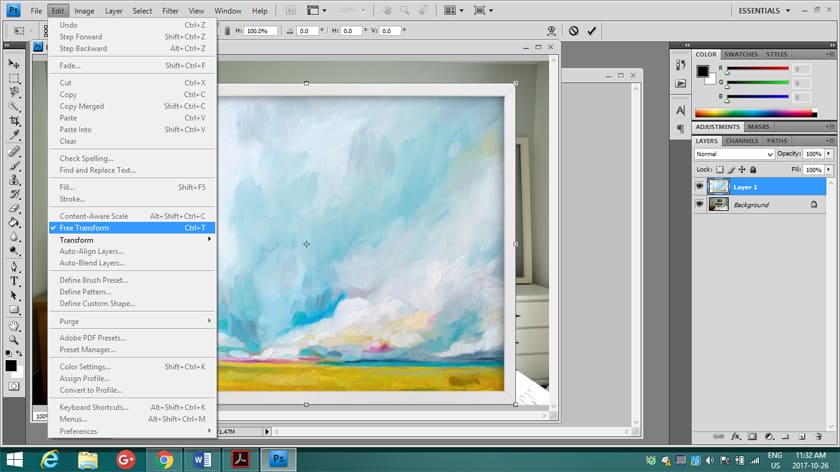
To scale it down, first go to Edit–>Free Transform (or press Ctrl+T).
Hold down the Shift key and the T key (to keep the proportions correct), then click one of the corner squares and drag it inward to shrink the picture.
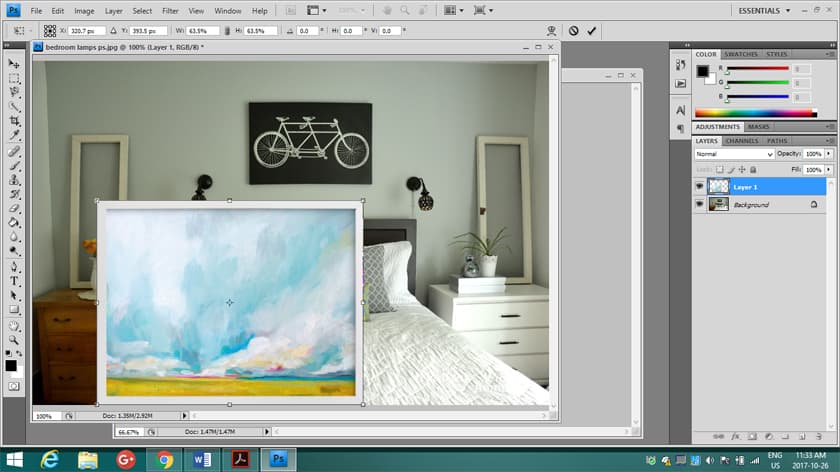
Position it where you’d like it on the wall, then click the check mark in the top right to apply the transform.
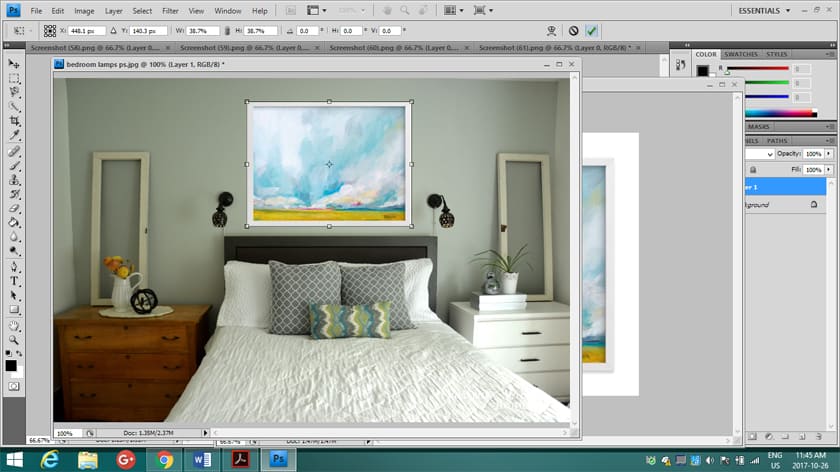
There you have it! Your potential picture in its space!
(**Please note: Colors on your screen and in photos are never exactly the same as they appear in real life. Keep in mind that this exercise gives you a general idea of what an actual print could look like.)
I tried these three art prints:
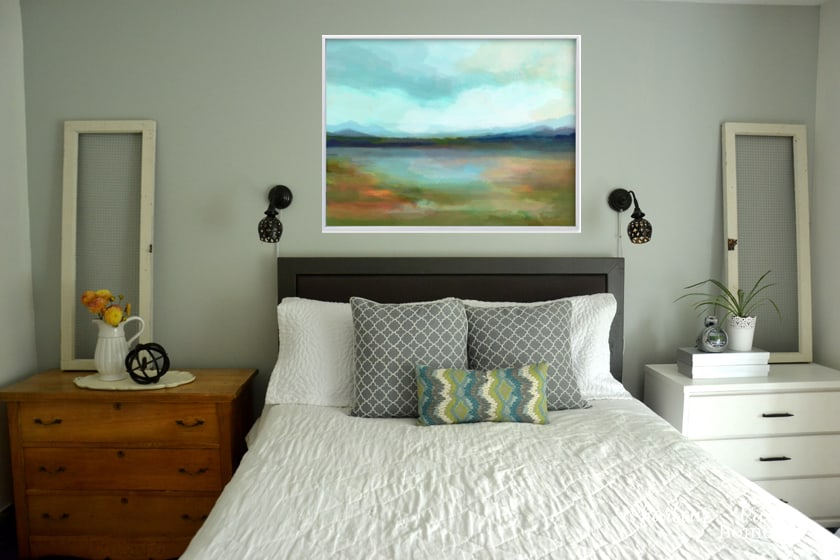
^^Days of Blue^^
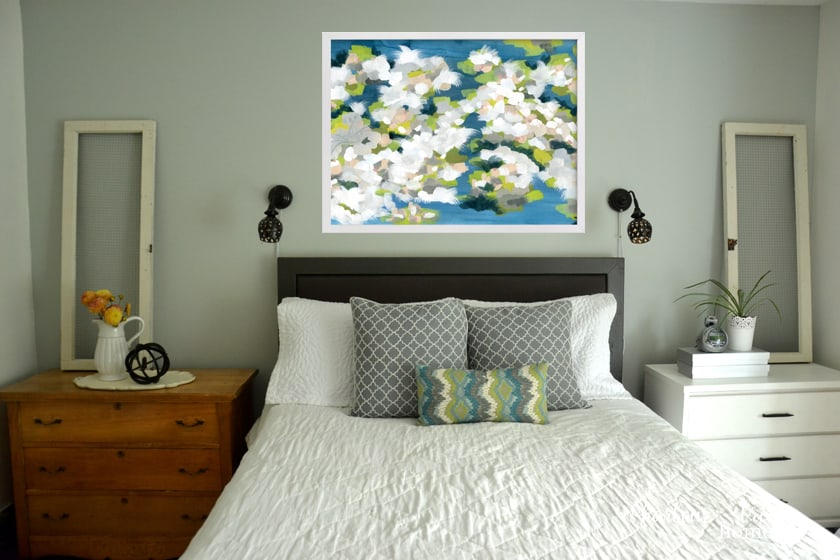
^^Verdant^^
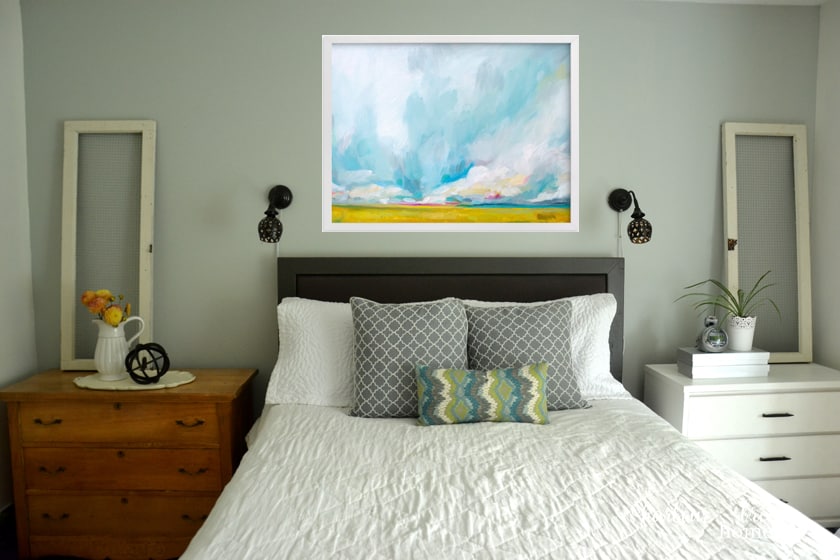
^^Savannah Lands^^
And which one did I pick??
Drumroll, please…
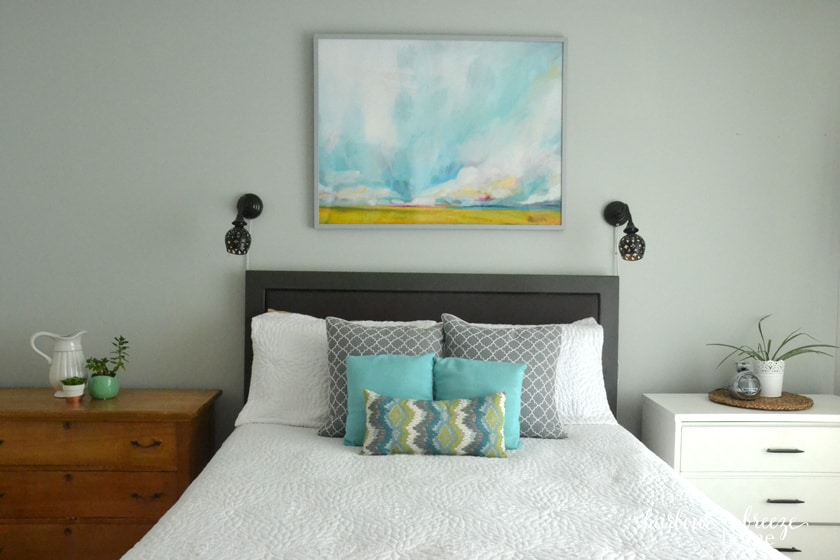
Savannah Lands!
We wanted something with fresh, happy colors, and we love it!
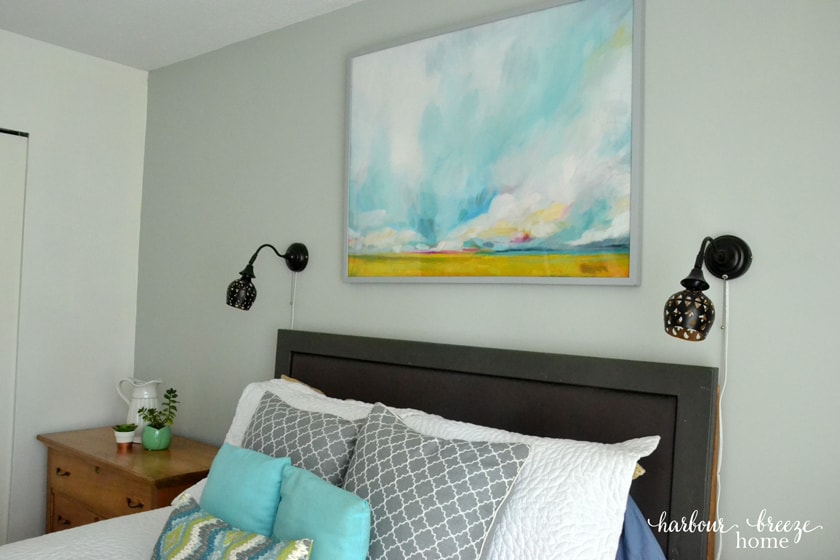
I ended up choosing a light gray frame, though there are other options to pick from, too.
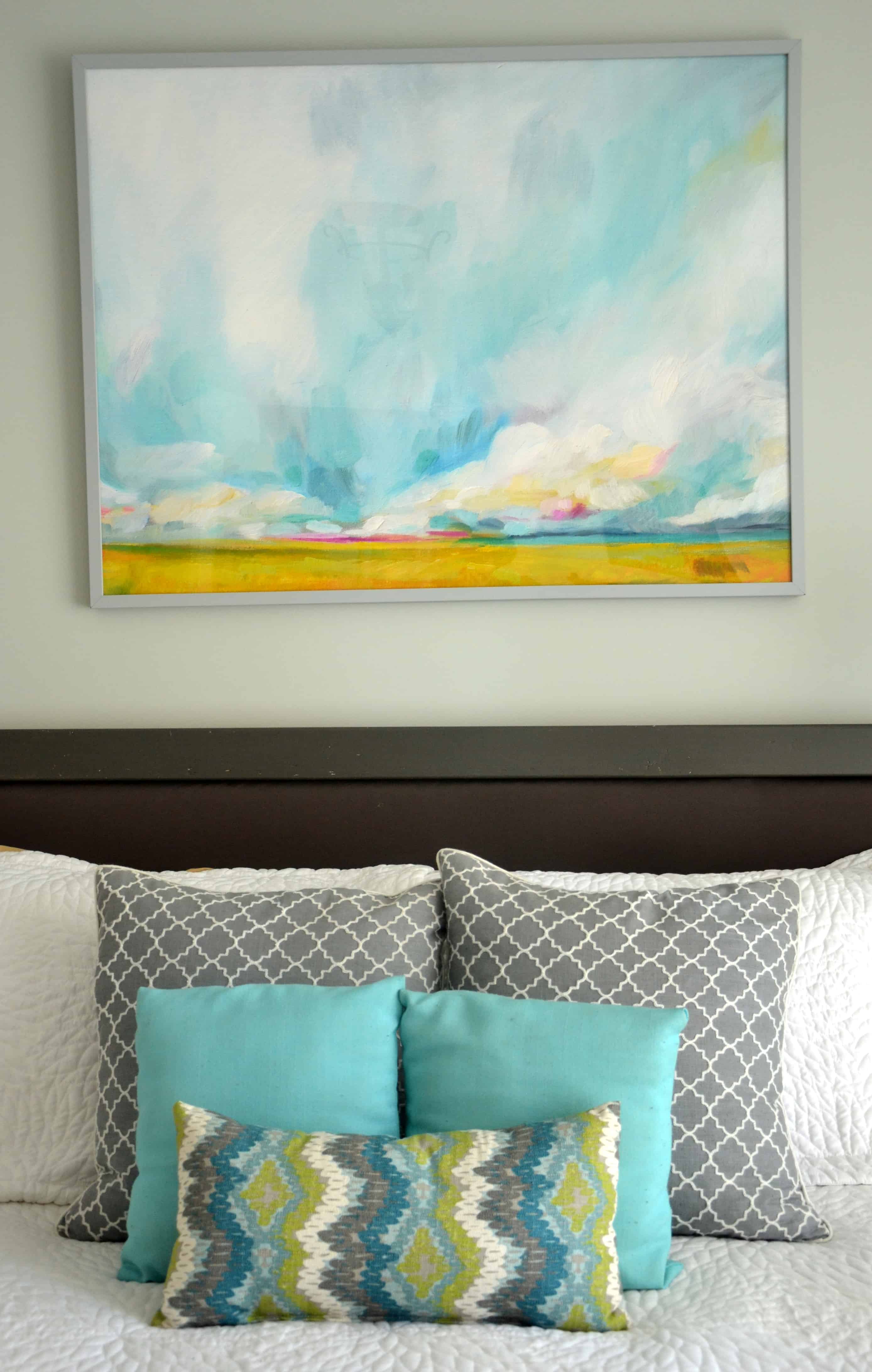
Because it’s the colors that drew us in, we may move it around to different rooms in the house someday.
Have you ever checked out Minted?
You just might want to. They not only have stunning art prints, but also a wonderful variety of other products.